Alert thresholds
Ferrule decides when a switch port's errors and a Wi-Fi radio's transmit retries are worth an alert. You can move those lines under Settings → Alert thresholds, for everything or for one switch, port, access point or radio. This is a paid feature, and free during the 30-day trial.
The built-in thresholds
| Alert | Warns at | Critical at |
|---|---|---|
| Errors climbing on a port | any rise between polls | 1 error a second |
| Wi-Fi transmit retries | 15% of packets, over at least 1,000 packets | none |
Port errors stay raised for ten minutes after the last rise, so one burst is one alert rather than one per poll. Retries must be over the line for three readings in a row to raise, and under it for three to clear.
What you need
- Sign-in on, as an admin. The panel only shows to a signed-in admin (Sign-in, users and roles).
SETTINGS_KEYin the stack's settings. Thresholds are kept, encrypted, with any local users. The setup wizard writes the key when you turn sign-in on there; otherwise Settings → Users and groups has a Make a key button. Keep a copy: a new key can't read what the old one saved.- A license, or the trial. Without one, the built-in thresholds apply. The thresholds you set are kept, and come back when a license is added.
Setting your own
- Sign in as an admin and open Settings → Alert thresholds.
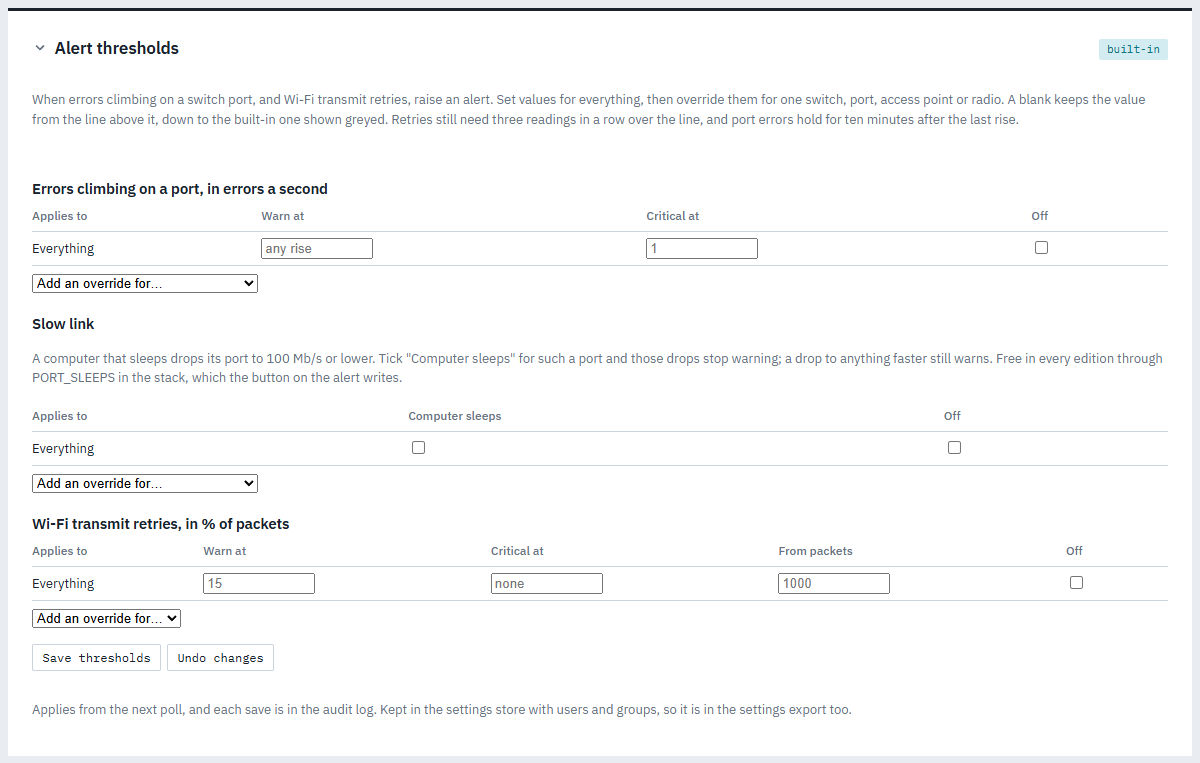
- On the Everything line, fill in what you want for all your devices. A blank keeps the built-in value, shown greyed. Port errors are in errors a second; retries are a percentage of packets, and From packets is how many packets a radio must have sent before its percentage counts.
- To treat one device differently, pick it under Add an override for…: a whole switch or access point, or one port or radio of it. Its blanks follow the line above it.
- Tick Off to stop that alert for that device, port or radio altogether.
- Click Save thresholds. Undo changes goes back to what was saved.
They apply from the next poll, and each save is in the audit log.
Examples:
- A warehouse access point retries a lot and always will: an override
for that AP with the warning at
30, or Off. - An old cable run that logs a few errors an hour: an override for that
port with the warning at
0.01errors a second. A trickle stays quiet and a real burst still alerts. - A noisy site in general: raise the Everything line, then override the core switch back down.
Computers that sleep (free)
A computer asleep with wake-on-LAN drops its network port to 100 Mb/s, and Ferrule would warn every night that the link is slow. Mark such a port as one whose computer sleeps: drops to 100 Mb/s or lower stop warning there, while a drop to anything faster, such as 10G coming back at 1G, still warns.
- The easy way: once a port has dropped and come back a couple of times, its slow-link alert offers It sleeps: ignore 100 Mb/s here. Click it.
- Without a license, that click adds the port to
PORT_SLEEPSin Settings → Stack environment. Copy the line into your stack's settings and redeploy. You can also write it yourself, as the switch's MAC and the port number, separated by commas:PORT_SLEEPS=78:45:58:aa:bb:cc/12, 78:45:58:aa:bb:cc/14 - With a license or the trial, the click saves it at once, and the
Slow link table on this panel has a Computer sleeps box for any
port. A port set by
PORT_SLEEPSshows there as locked.
Moving them to another install
Thresholds are part of Export settings on Settings → Users and
groups, so the exported file carries them to another install with the
same SETTINGS_KEY.
If something's wrong
| What you see | What to do |
|---|---|
| No Alert thresholds panel | Turn sign-in on and sign in as an admin |
The panel shows off and mentions SETTINGS_KEY |
Make a key on Settings → Users and groups, add it to the stack's settings and redeploy |
| The panel shows paused: "Setting thresholds needs a license" | The trial or license has ended, and the built-in thresholds apply. Your rules come back with a license |
More in Troubleshooting.